Visual Automation Builder: From Manual Tasks to Workflows
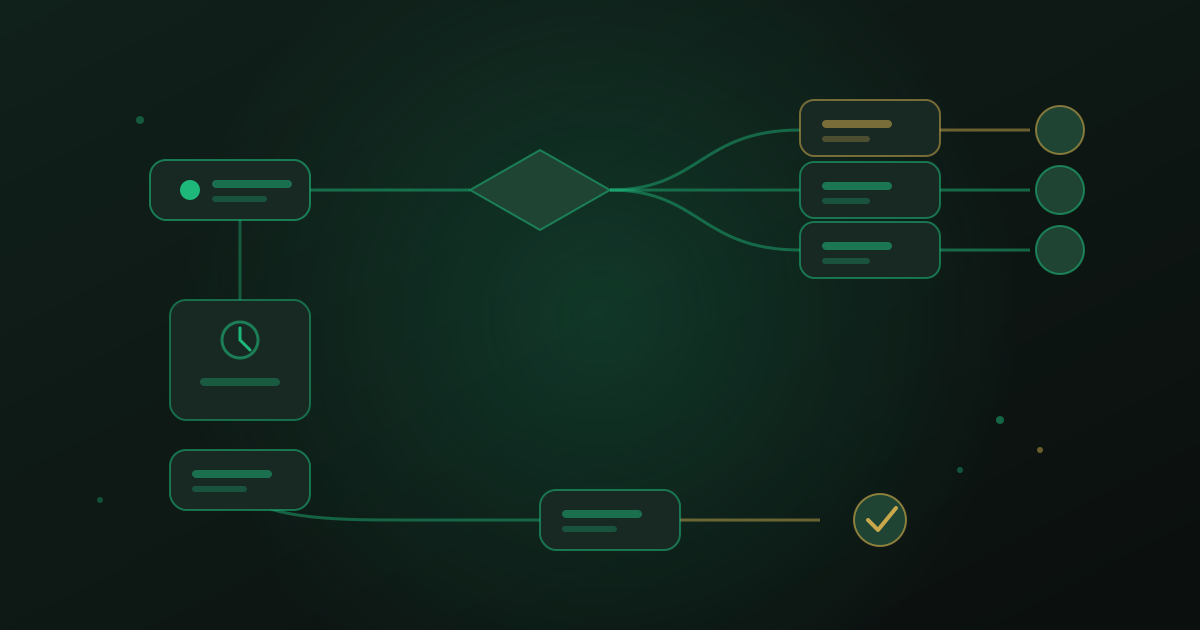
Every service business has a mental checklist nobody wrote down: tag the lead, send the welcome message, wait two days, check if they replied, assign the follow-up. It lives in one person's head, and it slips the moment they're on holiday. A visual automation builder takes that checklist out of your team's memory and turns it into a workflow the system runs the same way every single time.
This is the part of the CRM that starts paying for itself in the first week, because it removes the busywork sitting between your data and your team's attention. If you haven't yet, it's worth stepping back to the in-depth guide to AI CRM for service businesses to see where automation fits among the other building blocks.
What a visual builder actually is
Instead of writing code, you drag boxes onto a canvas and connect them with lines: a trigger box at the top, then a chain of action boxes underneath. Because the whole workflow is visible at once, anyone on your team can look at it and understand what happens and why — no developer required to build it, and none required to read it back six months later when someone asks "wait, why did this contact get three messages?"
That visibility matters more than it sounds. Automations that live only in a developer's script get forgotten, misremembered, or feared. Automations you can see on a canvas get maintained, because anyone can open the workflow, trace the path a contact took, and spot the step that misfired.
Triggers: what starts a workflow
A trigger is the event that wakes an automation up. The common ones cover almost everything a service business needs:
- A new contact is created — from a form, an import, or a manual add.
- A tag is added or removed — "hot lead", "vip", "needs callback".
- A form is submitted — a quote request, a booking request, a feedback survey.
- A pipeline stage changes — a deal moves from "contacted" to "proposal sent".
- A date arrives — an appointment is tomorrow, a contract renews next week.
Actions: what a workflow does next
Once triggered, a workflow runs through a sequence of actions. Send a WhatsApp or email message. Wait a set number of hours or days. Assign the contact to a team member. Update a custom field. Add or remove a tag, which can in turn feed a different automation. Branch down one path if the contact replied, another if they didn't. Chained together, these five or six simple blocks cover the overwhelming majority of what a service business repeats by hand every day.
Starter workflows worth building first
Don't try to automate everything on day one. Three workflows deliver most of the value and take an afternoon each to set up:
- Welcome and qualify: new contact created → send a welcome message → wait one hour → if no reply, tag "needs follow-up" and assign to the team.
- Appointment reminder: appointment booked → wait until 24 hours before → send a reminder with a reschedule link.
- Silent lead nudge: tag "quoted" added → wait three days → if pipeline stage hasn't changed, send a gentle check-in message and notify the assigned rep.
Each of these replaces a task someone used to do by memory, at an unpredictable time, if they remembered at all. Once they're running, look at Contact Management: Building a CRM Your Team Actually Uses — clean, consistent contact data is what makes triggers fire on the right people in the first place.
Automation reduces busywork, not oversight
The goal is never a CRM that runs itself with nobody watching. It's a CRM where the repetitive ninety percent runs on its own, and a human only touches the ten percent that needs judgment: an angry customer, an unusual request, a high-value deal worth a personal call. Every workflow should have a visible exit ramp — a way for a human to jump into the conversation, reassign it, or pause the automation entirely.
The best automation is the one your team forgets is running — until it saves them.
— be digital ai team
Where AI fits on top of automation
Rule-based workflows handle the predictable branches — trigger, wait, send, assign. But not every reply fits a clean rule, and that's where a layer of AI judgment earns its place inside the same canvas: reading a message, drafting the next step, and asking a human to approve it before it goes out. Our guide to the Workspace AI Copilot: Human-in-the-Loop Automation Explained covers exactly how that approval step works, and why it keeps the automation trustworthy instead of unpredictable.
Start small, watch it run, then expand
Build one workflow, watch ten real contacts move through it, and fix whatever surprises you. Only then add the next one. A CRM with three automations that run correctly beats one with twenty that nobody trusts enough to leave switched on.
Watch the visual automation builder in a live walkthrough, built around your own workflows.
Book a Demo